
Fixing Slow Windows PCs
Last updated: April 2026
Table of Contents
Quick Summary
Most slow Windows PCs can be fixed by reducing startup apps, removing heavy background software, freeing up disk space, and making sure Windows and drivers are up to date. This guide walks you through a clean, repeatable workflow that solves 80–90% of real-world “my computer is slow” cases.
Common Symptoms
- PC takes several minutes to boot or become usable after login.
- Apps take a long time to open or frequently “Not Responding.”
- High disk or CPU usage in Task Manager even when idle.
- Frequent spinning cursor, stuttering, or lag when switching windows.
Step-by-Step Fix
1. Check Task Manager for obvious bottlenecks
Right-click the taskbar and choose Task Manager (or press Ctrl + Shift + Esc). Click More details if you only see a small window. On the Processes tab, sort by CPU, then by Memory, then by Disk.
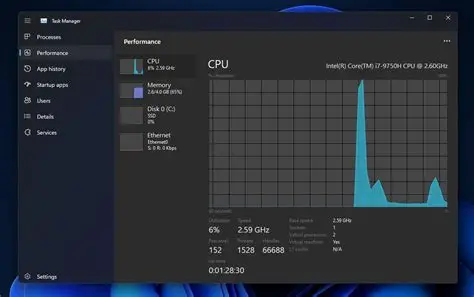
Task Manager is your first stop for spotting obvious resource hogs.
2. Disable unnecessary startup apps
Too many apps starting with Windows is one of the biggest causes of slow boot and sluggish performance.
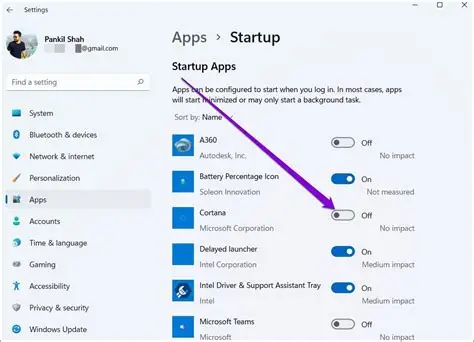
Disabling non-essential startup apps often makes the biggest single difference.
3. Uninstall heavy or unused software
Old trial software, OEM bloat, and tools you no longer use can drag the system down. Open Settings → Apps → Installed apps and uninstall anything you don’t recognize or need.
4. Free up disk space and check drive health
Windows slows down dramatically when the system drive is nearly full. Use Settings → System → Storage and enable Storage Sense to remove junk files and keep at least 20% free space.
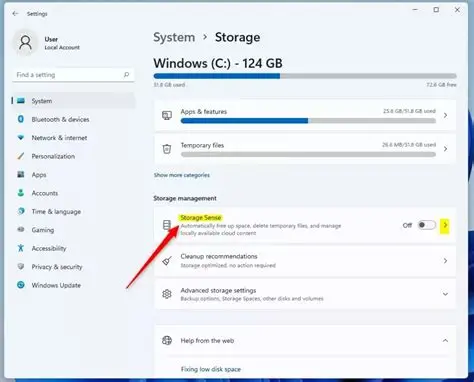
Keeping your system drive from filling up helps Windows stay responsive.
5. Restart the PC (Not Sleep)
Many users only sleep their PC for weeks, causing memory leaks and sluggishness. Restarting clears memory, resets services, and improves responsiveness.
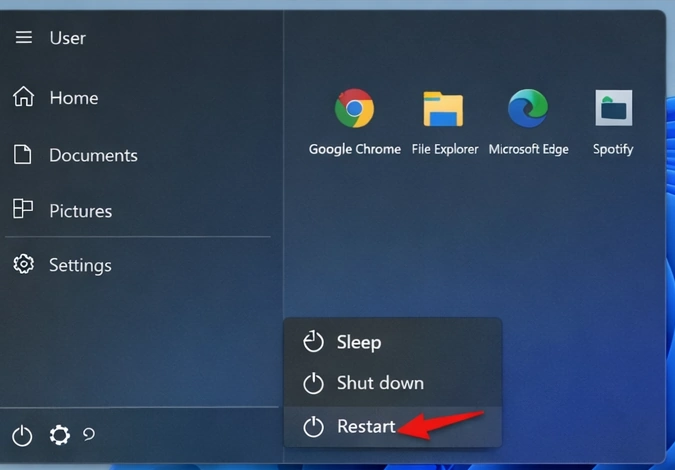
Restarting your PC clears memory and refreshes system performance.
6. Scan for Malware or PUPs
Malware and unwanted programs can consume resources and slow everything down. Run Windows Security → Virus & threat protection → Quick scan. Consider a second-opinion scanner like Malwarebytes (free).
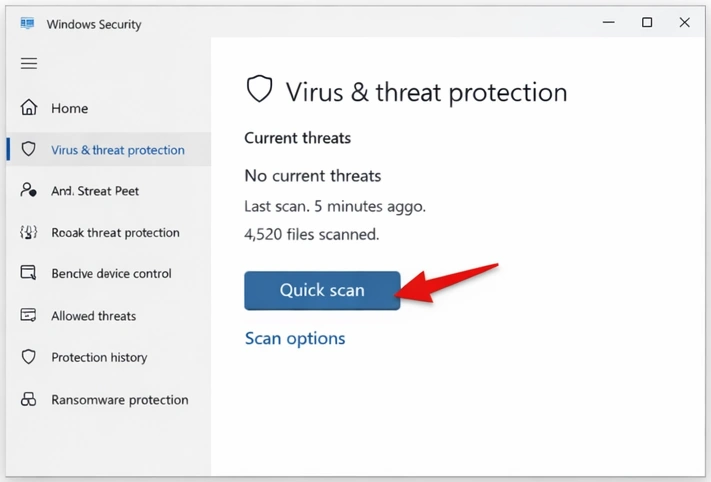
Quick scans catch most common malware and unwanted programs.
7. Check for Failing Hardware
If performance issues persist, the drive or RAM may be failing. If the disk is constantly at 100%, the HDD/SSD may be degrading. Use Windows Memory Diagnostic to test RAM. Consider upgrading to an SSD if still on HDD.
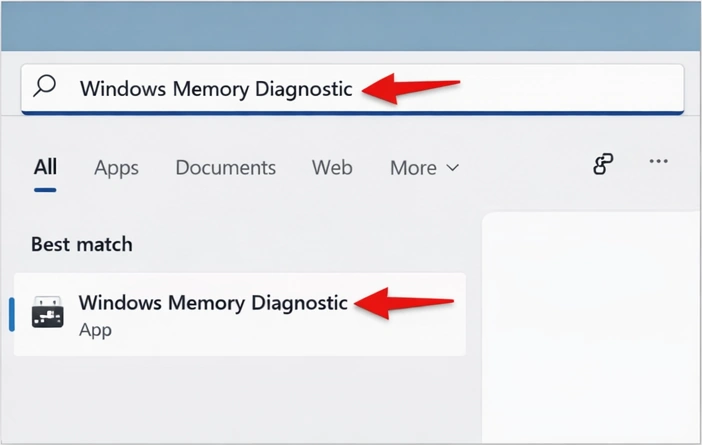
Search for Windows Memory Diagnostic to test your RAM.
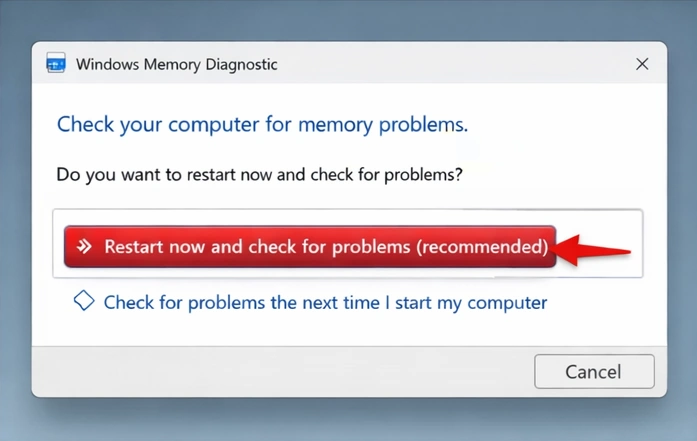
Restart now and check for problems to run the memory test.
Tools You May Need
- Windows Task Manager
- Windows Storage / Storage Sense
- Windows Security
- Windows Memory Diagnostic
When It’s Time to Upgrade
If you’ve gone through all of these steps and the PC is still slow, it may be time to consider hardware upgrades or replacement. In many cases, a simple SSD upgrade plus a RAM bump can make an older PC feel almost new again.
FAQ
Why is my PC still slow after disabling startup apps?
Check Task Manager for constant high disk or CPU usage. You may have a failing drive, malware, or a background app that needs to be reconfigured or replaced.
Is it better to reinstall Windows instead of troubleshooting?
A clean reinstall can help, but it’s more work. In most cases, following this workflow first will fix the problem without wiping your system.