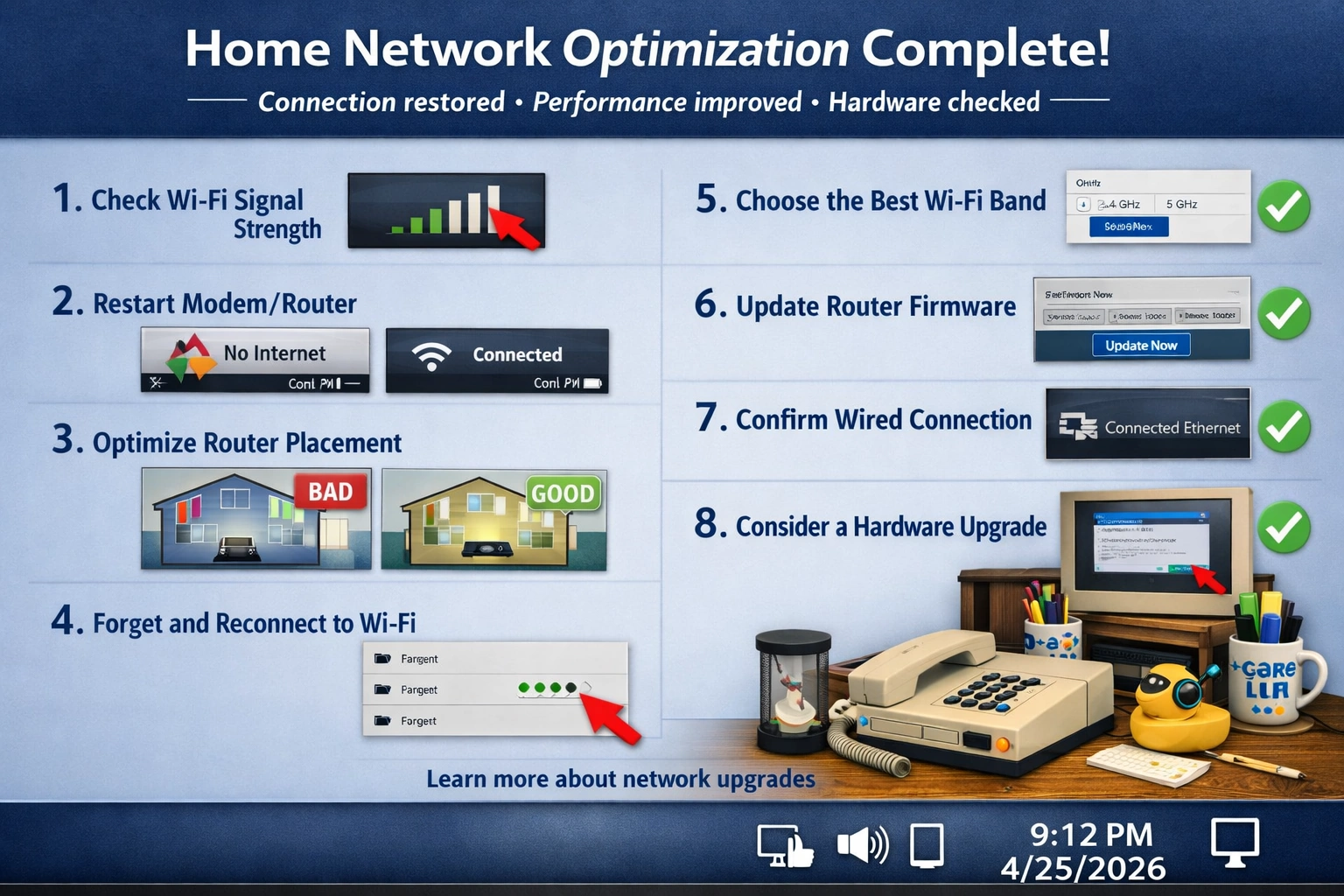
Beginner-Friendly Home Network Optimization
This guide walks you through simple, visual steps to restore a flaky home Wi‑Fi connection, improve performance, and verify that everything is working correctly.
Check Wi‑Fi Signal Strength
Restart your router and modem by pressing the power button or unplugging for 30 seconds, then reconnect. This clears temporary glitches and refreshes your network connection.
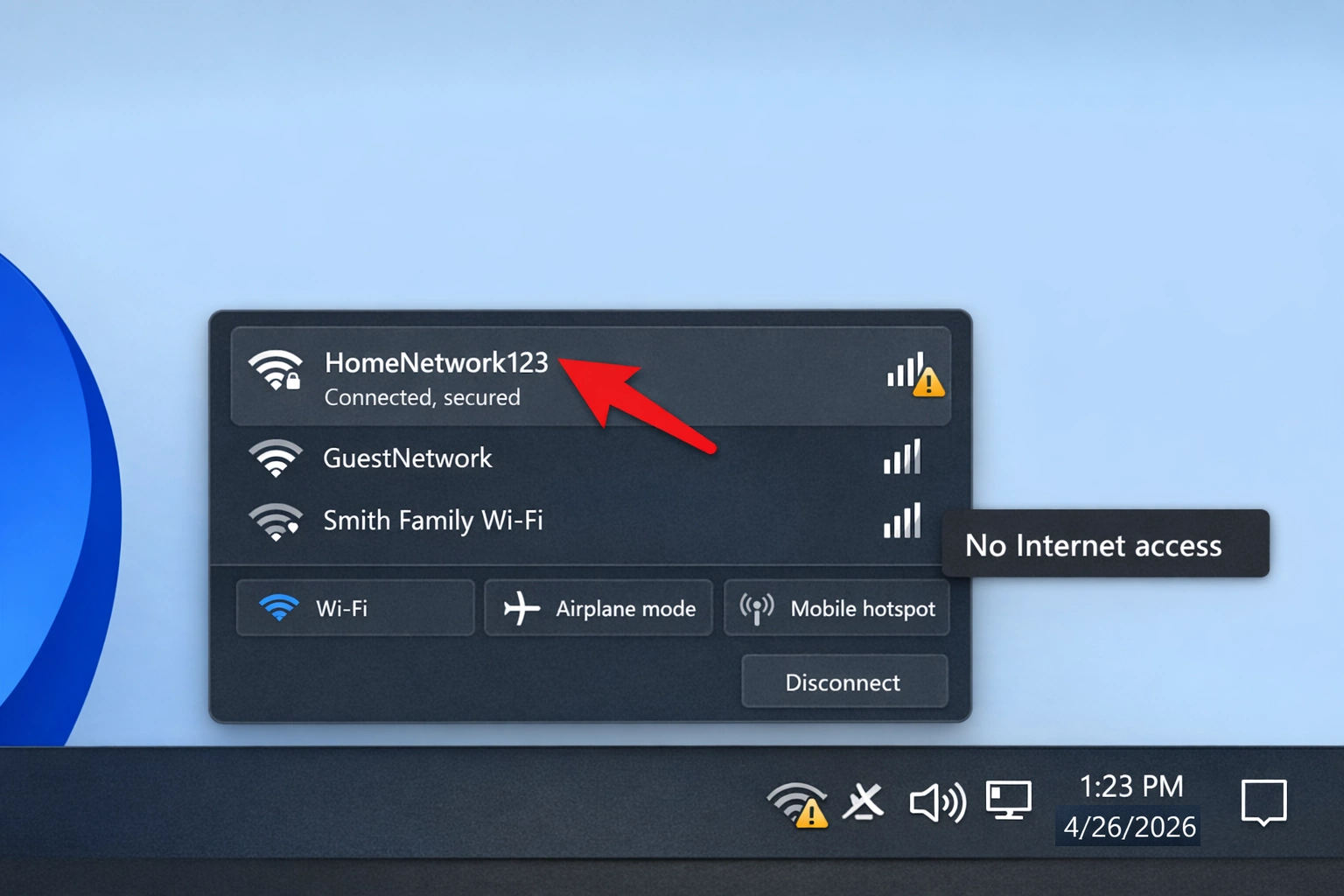
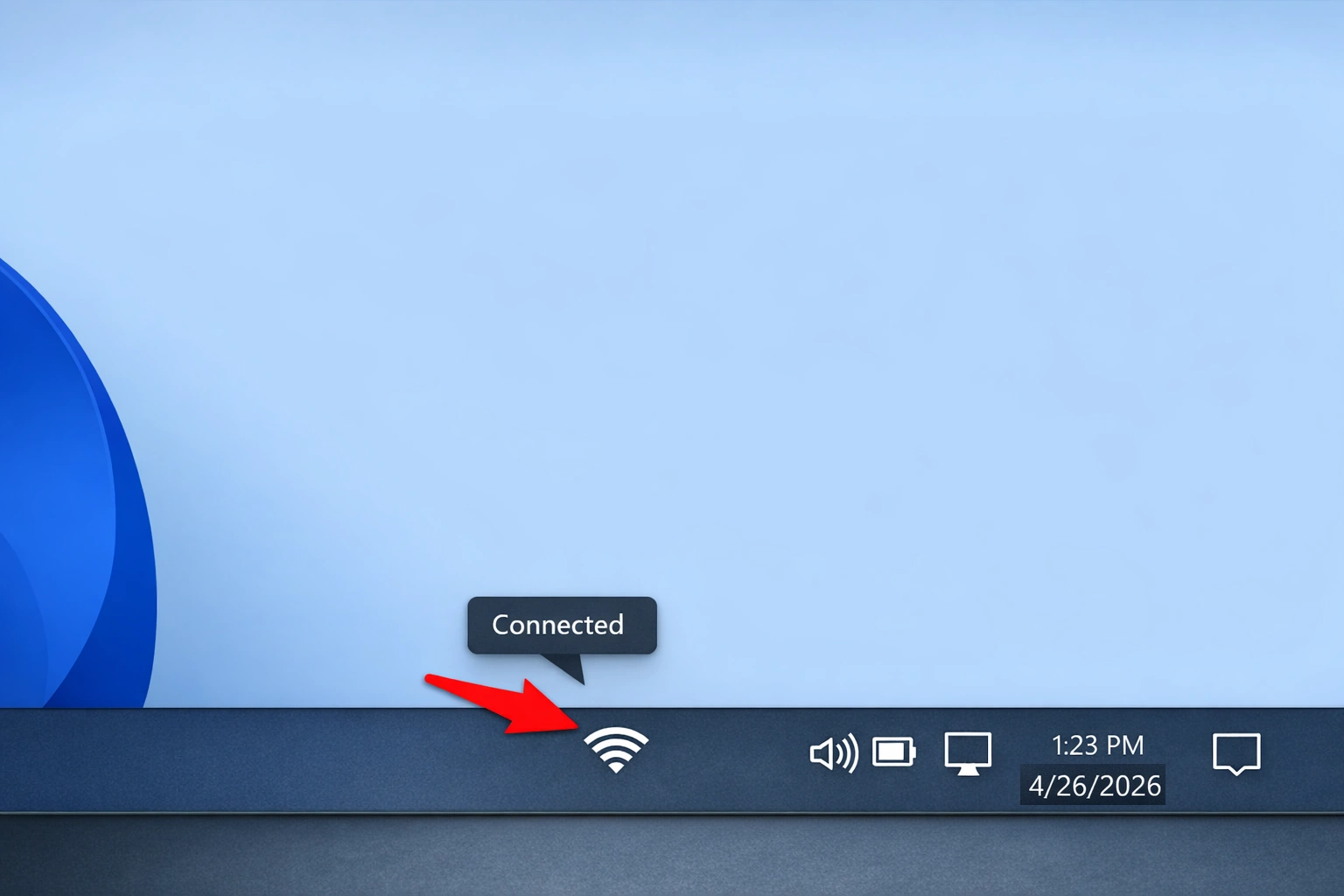
Restart Modem/Router
After restarting, check your Wi‑Fi icon to confirm connectivity. The following images show the difference between a disconnected and connected state.
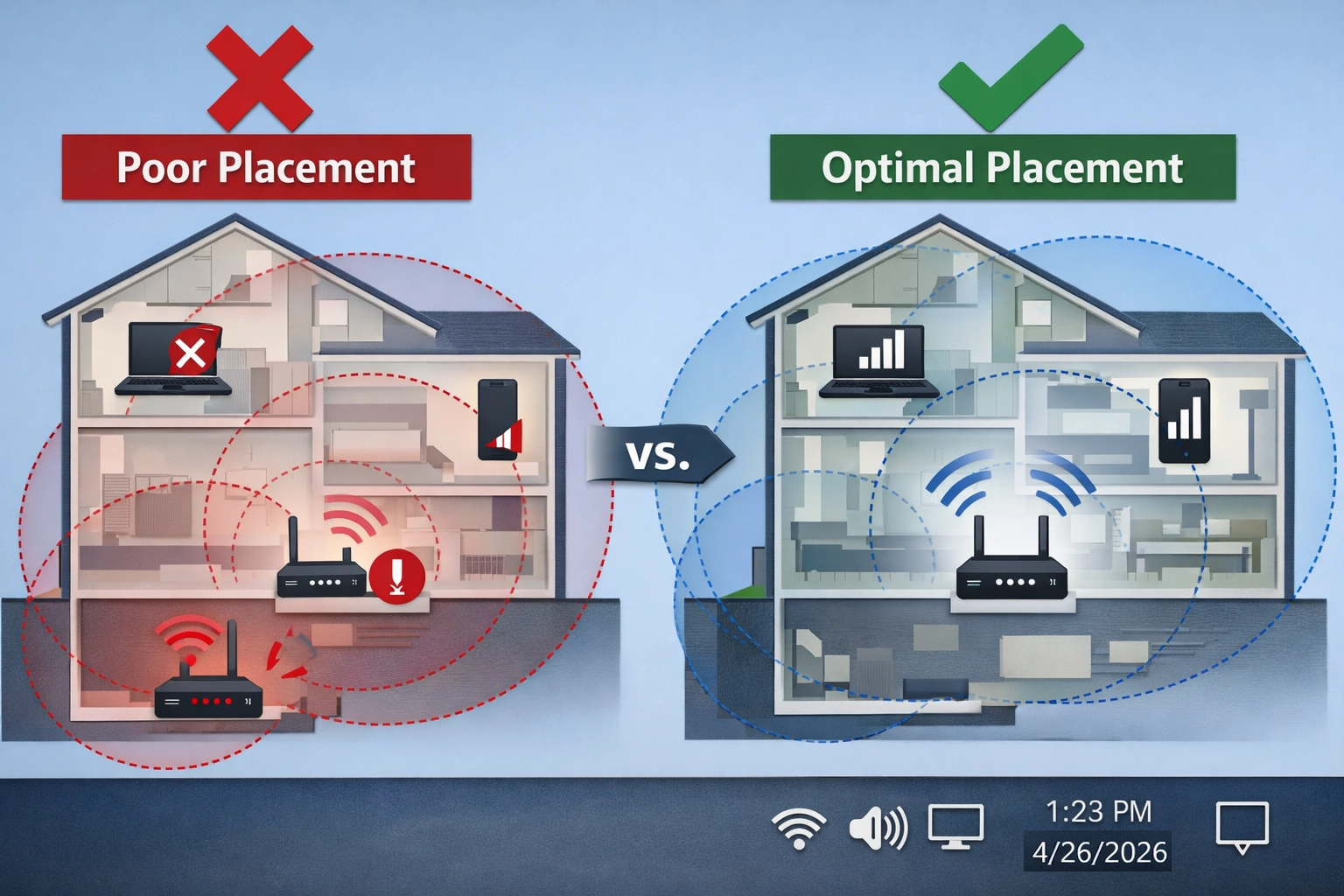
Router Placement Diagram
Place your router in a central, elevated location for optimal coverage. Avoid basements or corners blocked by walls or metal objects.
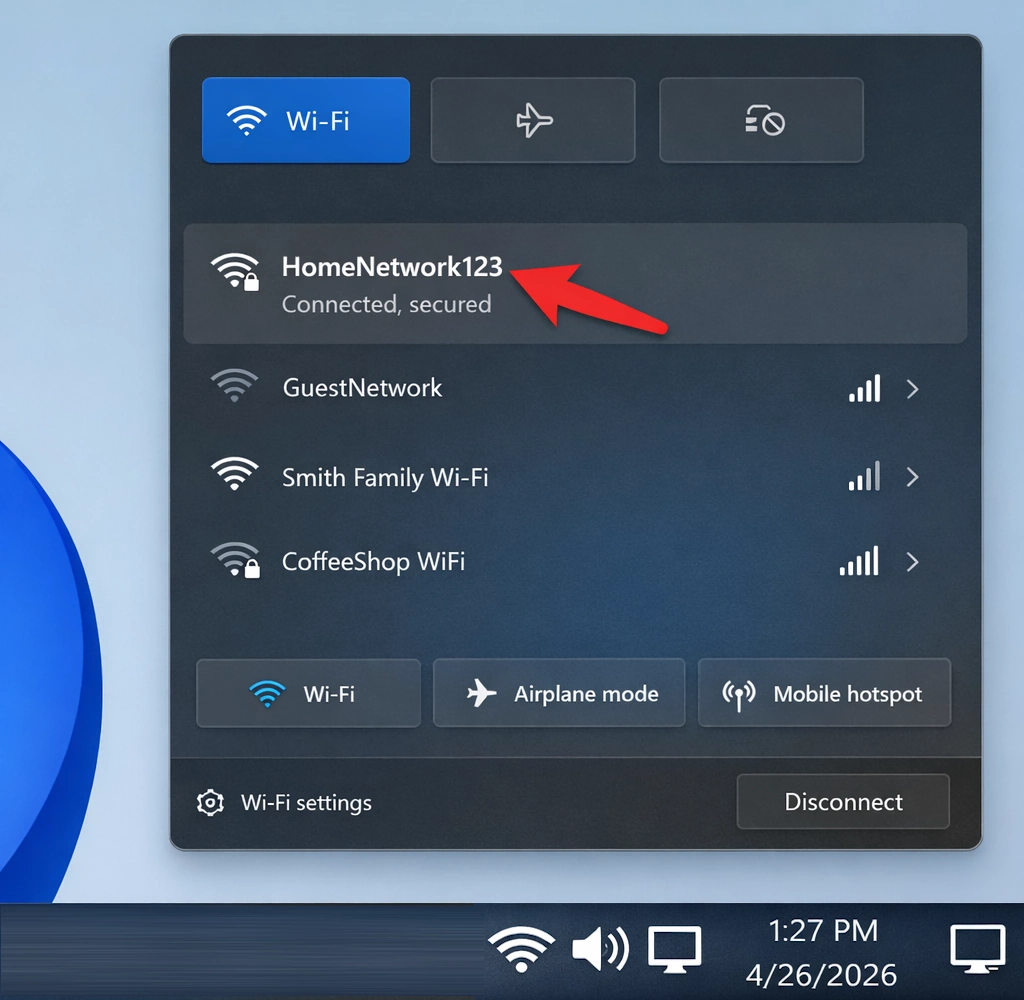
Forget Wi‑Fi Network
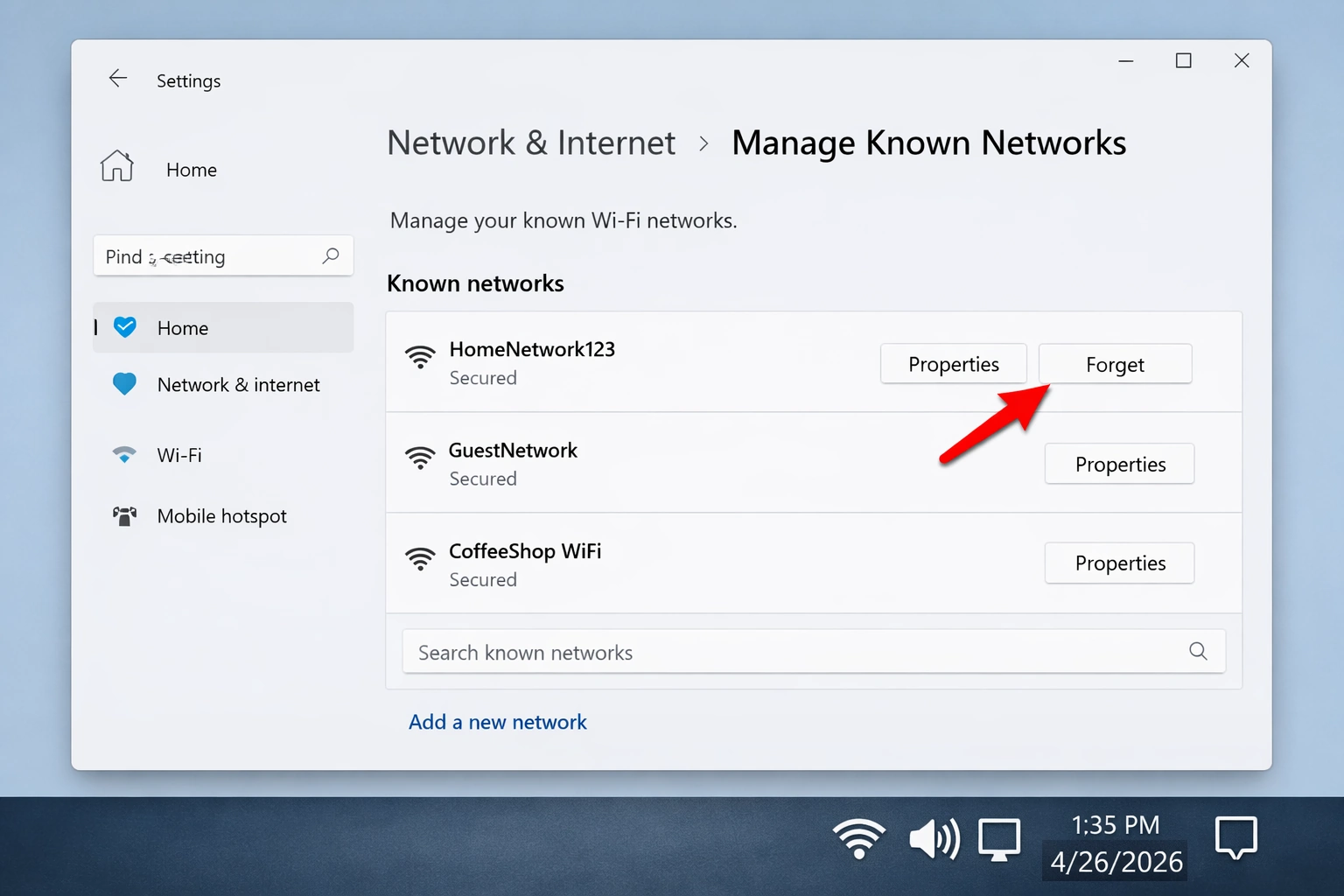
If problems persist, remove the saved Wi‑Fi profile and reconnect from scratch.
- Open Settings → Network & Internet → Wi‑Fi → Manage known networks.
- Select your home network and click Forget.
- Reconnect by choosing the network from the Wi‑Fi list and entering the password again.
Check Wi‑Fi Band (2.4 vs 5 GHz)
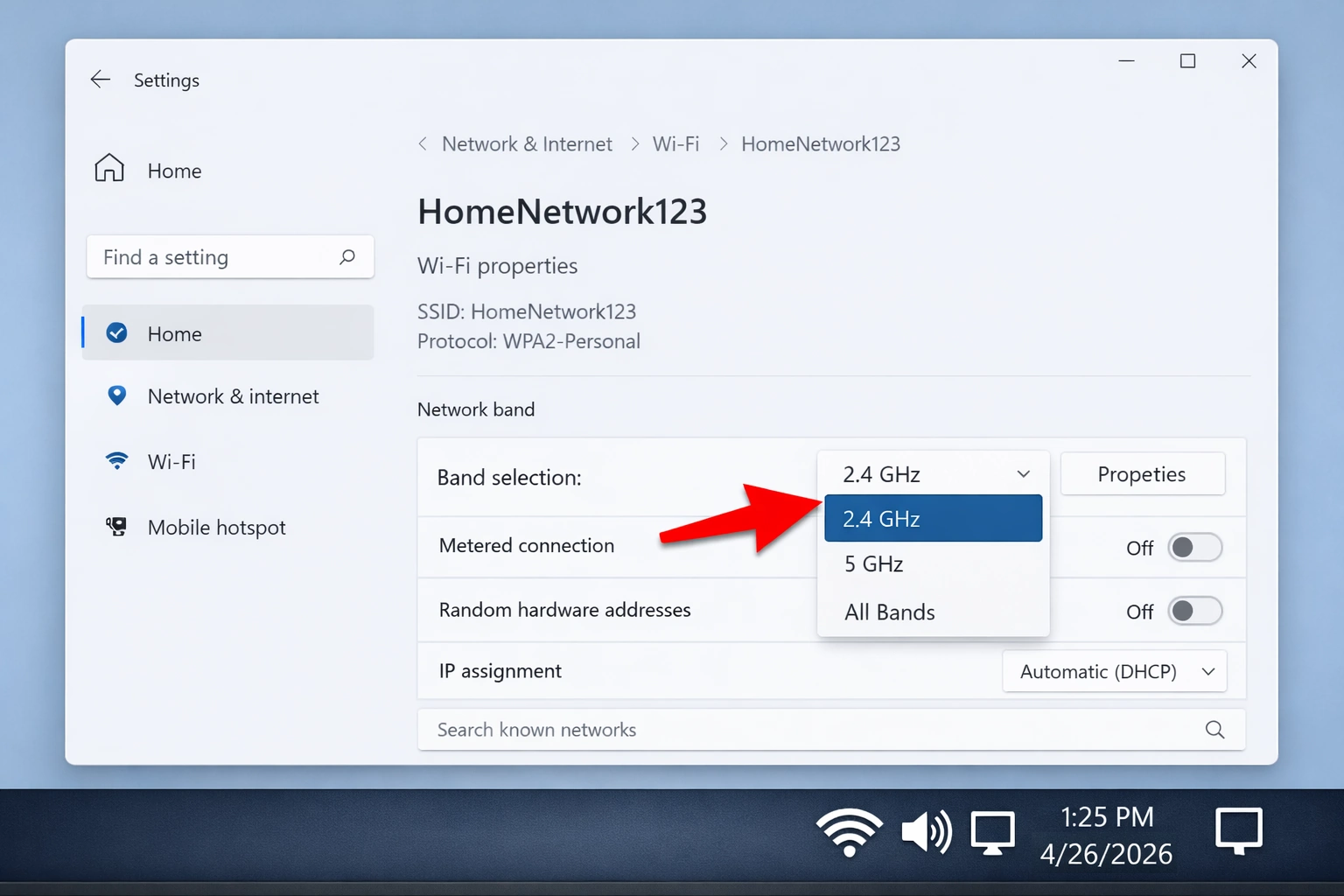
Choosing the right band can improve speed or range depending on your location.
- 2.4 GHz – Better range through walls, slightly slower.
- 5 GHz – Faster speeds, best when you’re closer to the router.
Firmware Update UI (Generic Router Interface)
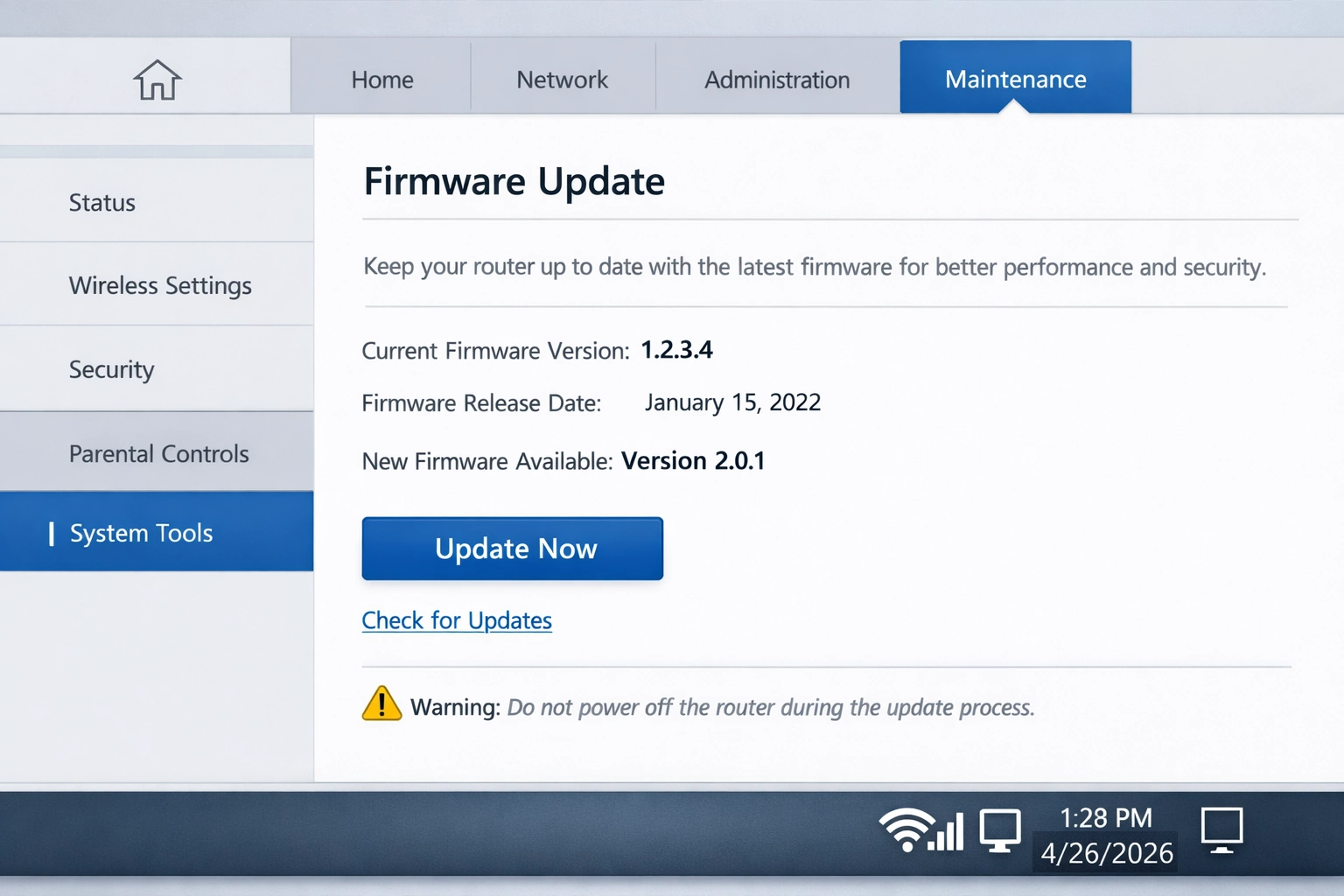
Keep your router’s firmware up to date for better performance and security. Use the router’s web interface to check for updates.
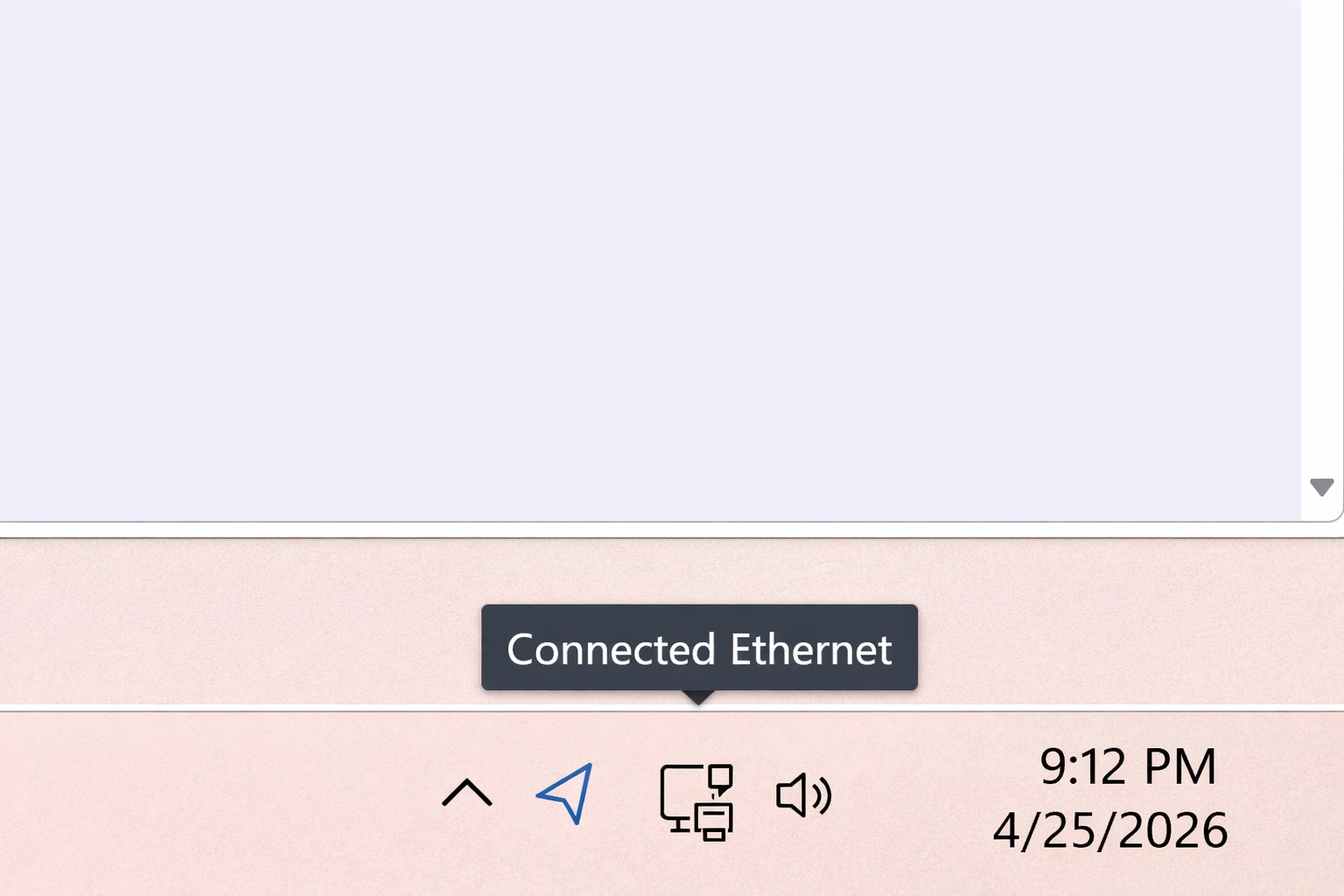
Ethernet Connected
For maximum stability, connect your computer directly to the router using an Ethernet cable. This bypasses wireless interference and ensures consistent speeds.
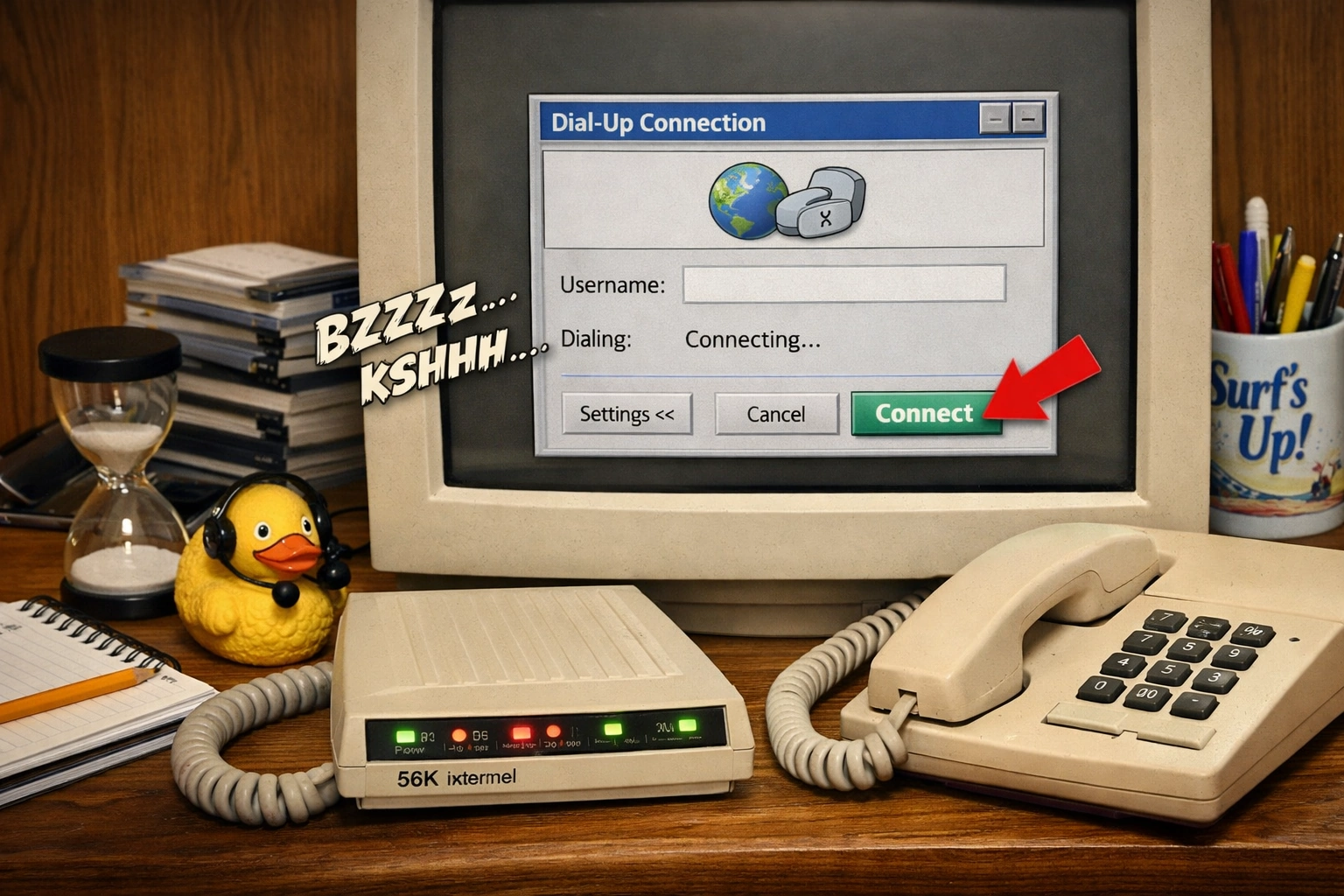
Dial‑Up Nostalgia Image (When to Upgrade Hardware)
If your router looks like it belongs in the dial‑up era, it’s time to upgrade. Modern routers offer faster speeds, better range, and improved security.
Home Network Optimization Complete
By following these eight steps, you’ve built a repeatable process for fixing most home Wi‑Fi issues and improving overall network performance.